Managing multiple websites can feel like juggling too many tasks at once. With a centralized system, you can streamline the process, saving time and effort. This guide will show you how to set up, configure, and optimize your network for maximum efficiency.
One of the biggest advantages is the ability to handle updates, security, and content from a single dashboard. This eliminates the need to log into multiple platforms, making your workflow smoother and more organized.
Before making any changes, it’s crucial to back up your website files. This ensures your data is safe during the transition. Our guide covers everything from enabling the system to advanced configurations and troubleshooting common issues.
Key Takeaways
- Centralized management simplifies handling multiple websites.
- Updates and security are streamlined for efficiency.
- Always back up your website files before making changes.
- This guide covers setup, configuration, and troubleshooting.
- Our team provides expert support for seamless transitions.
Understanding WordPress Multisite – What & Why
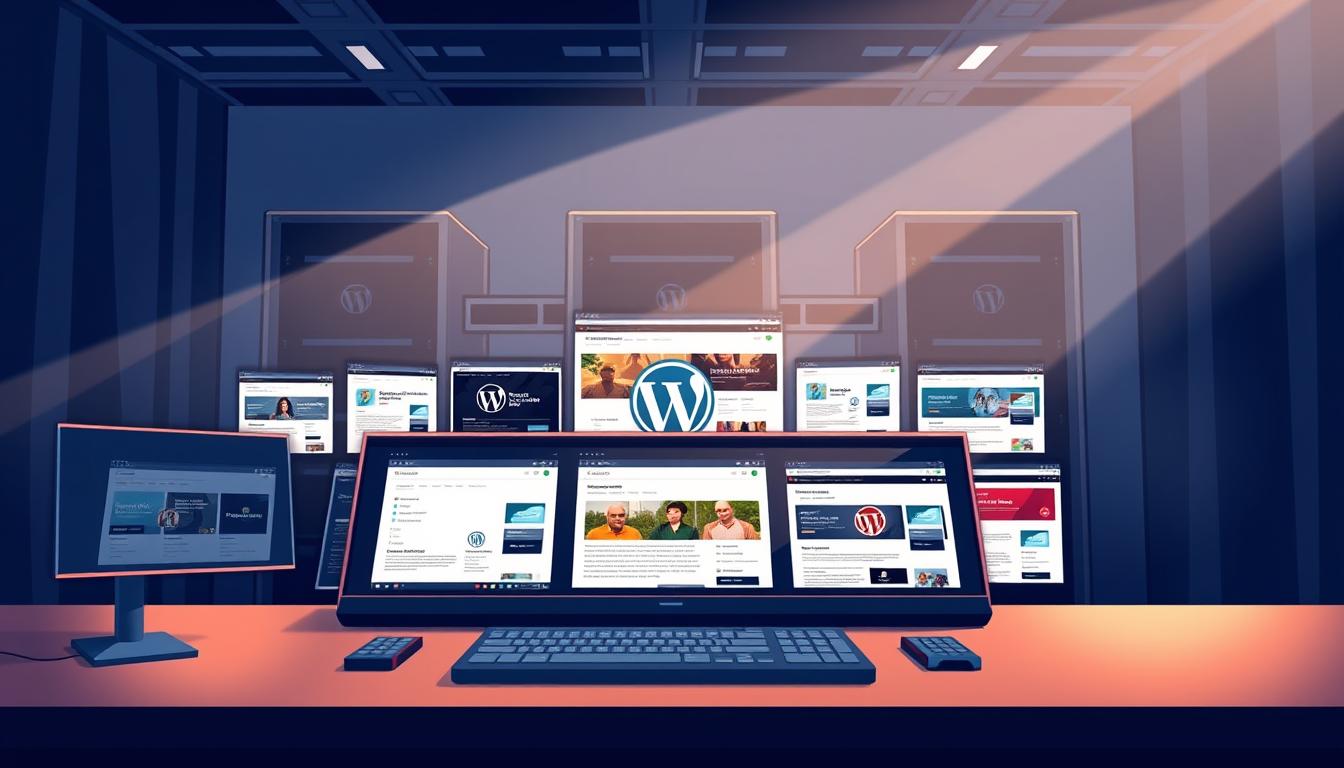
Running multiple websites doesn’t have to be overwhelming with the right tools. A multisite network allows you to manage all your sites from a single dashboard. This centralized approach saves time and effort, making it ideal for businesses and professionals.
Unlike single installations, a multisite setup lets you handle updates, security, and content across all your domains in one place. This eliminates the need to switch between platforms, streamlining your workflow.
One of the key advantages is efficient domain management. Whether you’re using subdomains or subdirectories, the system adapts to your needs. For example, subdomains work well for separate brands, while subdirectories are great for related projects.
When setting up your network, consider the technical aspects like domain and URL structures. Proper setting ensures seamless navigation and scalability. We’ve helped countless clients implement this system, ensuring enhanced control and growth.
Enabling Your WordPress Multisite Network
Enabling a multisite network is a straightforward process when you follow the correct steps. Before diving in, it’s essential to prepare your setup and ensure everything runs smoothly. This section will guide you through modifying the necessary files and deactivating plugins to avoid conflicts.
Modifying wp-config.php to Enable Multisite
The first step is to edit the wp-config.php file. This file contains critical configurations for your site. Locate it in your root directory and open it using a text editor.
Add the following line of code just above the line that says, “That’s all, stop editing! Happy blogging.”:
define( ‘WP_ALLOW_MULTISITE’, true );
This code enables the multisite feature. Save the file and upload it back to your server. This simple modification unlocks the ability to manage multiple sites from a single dashboard.
Preparing for the Network Setup
Before proceeding, deactivate all plugins. This prevents potential conflicts during the setup process. It’s also crucial to back up your wp-config.php and .htaccess files. These files store important settings, and having a backup ensures you can restore them if needed.
Here’s a quick checklist to prepare your network:
- Deactivate all plugins to avoid conflicts.
- Back up your wp-config.php and .htaccess files.
- Ensure you have access to your admin dashboard for the next steps.
Following these steps meticulously ensures a smooth transition to a multisite network. Once everything is in place, you’re ready to activate and configure your network.
Activating Your Multisite Network
Activating a multisite network is easier than you think with the right guidance. Once enabled, the next step is to complete the activation process. This ensures your network is ready to manage multiple sites efficiently.
To begin, navigate to the Tools menu in your dashboard. Here, you’ll find the Network Setup option. Clicking this will start the activation process. Follow the prompts carefully to avoid errors.
During setup, you’ll be asked to copy specific lines of code into your wp-config.php and .htaccess files. These lines are crucial for network functionality. Ensure you paste them exactly as provided.
Once the files are updated, log back into your dashboard. You’ll now have access to the network admin and super admin roles. These roles are essential for managing your network effectively.
The network admin oversees all sites in the network, while the super admin has full control over settings and configurations. Understanding these roles ensures smooth operation.
Here’s a quick summary of the activation steps:
| Step | Action |
|---|---|
| 1 | Access the Network Setup option from the Tools menu. |
| 2 | Copy the provided lines into wp-config.php and .htaccess. |
| 3 | Log back into your dashboard to access network admin and super admin roles. |
Using the provided tool ensures a seamless activation process. We’re here to guide you every step of the way, ensuring your network is set up correctly.
Quick 1-Click Multisite Installation Process
Simplifying the multisite setup is now easier than ever with one-click solutions. These tools are designed to save time and reduce technical barriers, making them ideal for users of all skill levels.
With a 1-click installation, you can add new sites directly through the network dashboard. This feature eliminates the need for manual configurations, ensuring a seamless setup process.
Automated url settings are another advantage. The system handles domain structures, whether you’re using subdomains or subdirectories. This ensures consistency and scalability across your network.
Here’s a quick comparison of manual vs. 1-click installations:
| Method | Time Required | Technical Expertise |
|---|---|---|
| Manual Installation | 30+ minutes | Advanced |
| 1-Click Installation | Under 5 minutes | Beginner-friendly |
Ready-to-run packages from sources like BitNami further enhance the process. These tools provide pre-configured setups, allowing you to focus on managing your sites rather than technical details.
“1-click installations are a game-changer for anyone managing multiple sites. They simplify the process and reduce the learning curve.”
Our guide ensures you can leverage these features effectively. Whether you’re a beginner or an experienced user, the 1-click method offers a reliable and efficient solution.
Quick Cleanup – Streamlining Your Installation
After setting up your network, a quick cleanup ensures optimal performance. Removing unnecessary files and code enhances efficiency and prevents potential issues. We’ll guide you through the process of streamlining your directories, cleaning database tables, and organizing media content effectively.
Start by reviewing your directories. Remove any unused files or plugins that may clutter your system. This step not only frees up space but also reduces the risk of conflicts. Next, optimize your database tables. Cleaning up redundant data improves speed and responsiveness.
Here’s a quick checklist for your cleanup process:
- Remove unused plugins and themes from your directories.
- Clean and optimize database tables for better performance.
- Organize media content into logical folders for easy access.
- Verify cleanup actions to ensure no functionality is disrupted.
Proper organization of media content is equally important. Group files into folders based on categories or projects. This makes it easier to manage and locate assets across your network.
“A clean setup is the foundation of a stable and efficient network. Taking the time to streamline your installation pays off in the long run.”
Finally, test your network after cleanup. Ensure all sites function correctly and that no critical files were accidentally removed. This step guarantees a smooth and reliable experience for all users.
By following these steps, you’ll achieve a streamlined installation that supports long-term stability and enhanced performance. We’re here to help you every step of the way, ensuring your network runs at its best.
Navigating the Network Admin Dashboard
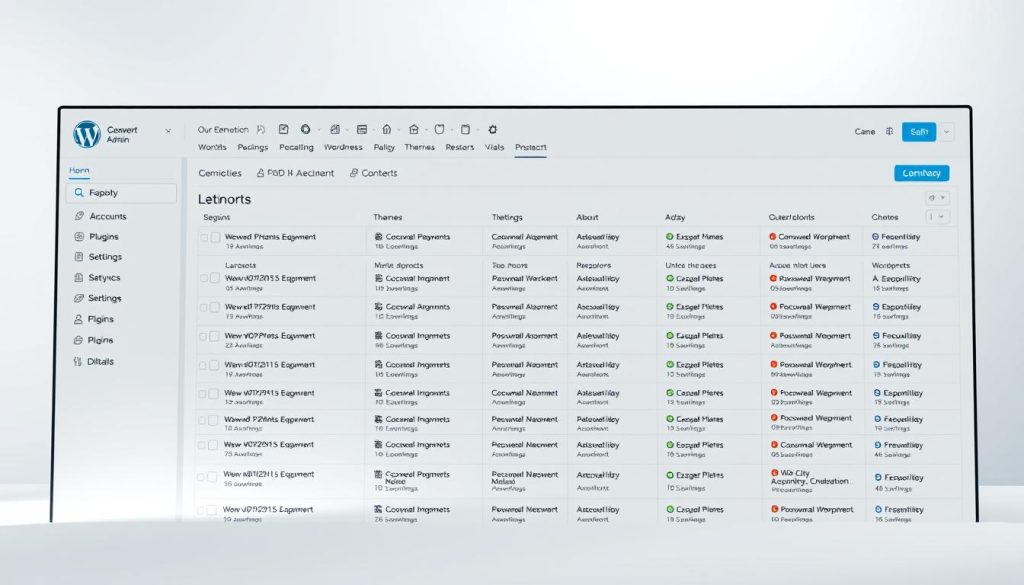
The Network Admin Dashboard is your command center for managing multiple sites with ease. It provides a centralized interface where you can oversee all aspects of your network. From site creation to updates, this dashboard simplifies complex tasks.
Overview of Key Features
The dashboard is designed to make site management intuitive. Key features include the My Sites menu, which allows quick access to individual sites. You can also monitor performance, manage user roles, and configure network settings.
Another essential feature is the menu for site creation. This tool lets you add new sites effortlessly, ensuring scalability. Updates and security patches can also be applied across the entire network from this central hub.
Accessing the Network Tools
Navigating the dashboard is straightforward. Start by logging into your admin account. From there, you’ll find the menu on the left-hand side. This menu provides access to all essential tools, including site management and user controls.
For example, the Network Settings option lets you customize domain structures and permissions. The Plugins and Themes sections allow you to manage extensions and designs across all sites.
Here’s a quick guide to accessing key tools:
- Use the My Sites menu to switch between individual sites.
- Navigate to Network Settings for domain and permission configurations.
- Access Plugins and Themes to manage extensions and designs.
We’re here to ensure you can confidently manage your network. Our team provides expert support, helping you leverage the full potential of the dashboard.
Creating and Managing Sites – Basic Administration
Efficiently managing multiple sites starts with mastering the basics of site creation and administration. We’ll guide you through adding new sites, configuring settings, and understanding the roles of individual administrators. This ensures your network runs smoothly from the start.
To add a new site, navigate to the Network Admin dashboard. Click on the Sites menu and select Add New. Enter the required details, such as the site address and title. This process is quick and ensures your new site is ready for customization.
Once created, configure the basic settings for each site. This includes setting up the theme, assigning an administrator, and enabling essential features. Each site can have its own unique design and functionality, tailored to its purpose.
Choosing the right theme is crucial for branding and user experience. Browse the available options and select one that aligns with your goals. You can also integrate plugin themes to enhance functionality, such as adding contact forms or e-commerce capabilities.
“A well-configured site is the foundation of a successful network. Take the time to customize each one for optimal performance.”
Here’s a quick checklist for basic site administration:
- Add new sites through the Network Admin dashboard.
- Configure basic settings, including themes and plugins.
- Assign administrators to manage individual sites.
- Customize each site to meet specific needs.
We’re here to ensure you can confidently manage your network. Our step-by-step guidance makes site creation and administration straightforward, even for beginners.
Advanced Site Administration and Network Configuration
Taking your site management to the next level requires mastering advanced configurations and customizations. These techniques ensure your network operates efficiently while meeting specific needs. We’ll guide you through custom site settings, domain mapping, and email notifications to streamline your workflow.
Customizing Site Settings
Tailoring each site’s appearance and functionality is essential for a cohesive network. Start by accessing the site settings in your admin dashboard. Here, you can adjust themes, plugins, and permissions to match individual site requirements.
For example, you can assign unique themes to each site for branding consistency. Additionally, enabling specific plugins ensures functionality aligns with the site’s purpose. Customizing these settings enhances user experience and operational efficiency.
Domain Mapping Techniques
Assigning custom domains to specific subsites is a powerful feature of advanced networks. Domain mapping allows you to link external domains to individual sites within your network. This process enhances branding and simplifies navigation for users.
To implement domain mapping, follow these steps:
- Access the network admin dashboard and navigate to the domain settings.
- Enter the custom domain details for the desired site.
- Update DNS records to point the domain to your network.
Proper mapping ensures seamless integration and scalability for your network.
Configuring Email Notifications
Streamlining communication is crucial for efficient network management. Customizing email notifications ensures you stay informed about site registrations, updates, and changes. Access the email settings in your admin dashboard to configure these alerts.
For instance, you can set up notifications for new site registrations or user role changes. Tailoring these settings keeps your team informed and responsive to network activity.
“Advanced configurations like domain mapping and custom email notifications are game-changers for network efficiency. They provide the flexibility and control needed to manage complex setups.”
By implementing these advanced techniques, you’ll enhance your network’s performance and scalability. We’re here to support you every step of the way, ensuring your setup meets industry standards and best practices.
Creating and Managing Users on Your Network
Effective user management is a cornerstone of running a successful network. Whether you’re expanding your network or fine-tuning access, understanding how to create and assign roles is essential. We’ll guide you through both automated and manual processes to ensure seamless user administration.
Auto-Creating Users in the Network
Automating user creation saves time and ensures consistency across your network. When enabled, the system can auto-generate users based on specific triggers, such as site registration or subdomain setup. This feature is ideal for networks with frequent user additions.
To enable auto-creation, navigate to the network settings and configure user registration options. You can set conditions for auto-creation, such as assigning default roles or linking users to specific pages. This ensures every new user is integrated smoothly into the network.
Here’s how auto-creation works:
- Enable user registration in the network settings.
- Set default roles for auto-created users.
- Link users to specific subdomains or pages for targeted access.
Manually Adding Users and Assigning Roles
For greater control, manually adding users allows you to tailor roles and permissions. This method is ideal for networks requiring precise access management. Start by accessing the user management section in your admin dashboard.
Enter the user’s details, such as email and username. Then, assign a role based on their responsibilities. Roles like administrator, editor, or subscriber determine their access level. You can also integrate theme plugin options to enhance user-related pages.
Here’s a step-by-step guide:
- Navigate to the user management section.
- Add user details and assign a role.
- Customize access using theme plugin integrations.
“Manual user addition provides unmatched control over network access. It’s a must for networks with diverse user needs.”
By mastering both automated and manual user management, you’ll ensure your network operates efficiently. We’re here to support you every step of the way, providing expert guidance for seamless administration.
Managing Plugins and Themes on Your Multisite
Streamlining plugin and theme management across multiple sites ensures consistency and efficiency. With centralized control, you can handle updates, installations, and customizations from a single dashboard. This approach saves time and reduces the risk of compatibility issues.
Super admins have the ability to install and enable plugins or themes across the entire network. This ensures uniformity while still allowing individual sites to customize their appearance and functionality. Let’s dive into the details of managing these essential components.
Installing and Managing Plugins
To install a new plugin, navigate to the network admin dashboard. From there, you can upload or search for plugins directly. Once installed, you can enable the plugin for all sites or specific ones, depending on your needs.
Managing plugin versions is crucial for compatibility. Super admins can update plugins across the network, ensuring all sites run the latest version. This reduces security risks and improves performance.
Here’s a quick guide to plugin management:
- Install plugins from the central dashboard.
- Enable plugins for specific sites or the entire network.
- Regularly update plugins to the latest version.
Installing and Managing Themes
Themes define the appearance of your sites. To install a new theme, access the network admin dashboard and upload or search for themes. Once installed, you can activate themes for individual sites or across the network.
Customizing themes is straightforward. You can modify the address of theme files to ensure consistency or allow unique designs. This flexibility ensures branding remains cohesive while accommodating specific site needs.
Here’s a comparison of theme management options:
| Option | Benefit |
|---|---|
| Network-wide Activation | Ensures uniformity across all sites. |
| Site-specific Activation | Allows customization for individual sites. |
By mastering plugin and theme management, you’ll enhance your network’s performance and flexibility. We’re here to guide you every step of the way, ensuring your setup meets industry standards and best practices.
Updating and Securing Your Multisite Network
Keeping your network secure and up-to-date is essential for smooth operations. Regular updates and robust security measures ensure your site network remains stable and protected. We’ll guide you through the best practices to maintain a secure and efficient setup.
Applying updates to core files and plugins is the first step in safeguarding your network. Outdated software can expose your site network to vulnerabilities. Always test updates in a staging environment before deploying them to avoid disruptions.
Here’s a quick checklist for maintaining your network:
- Regularly update core files and plugins to the latest versions.
- Test updates in a staging environment before deployment.
- Monitor your site network for unusual activity or vulnerabilities.
- Backup your database and files before making significant changes.
Real-world cases show that proactive security measures prevent breaches. For example, implementing two-factor authentication and regular audits can significantly reduce risks. These practices ensure your network remains secure and reliable.
Monitoring network health is equally important. Use tools to track performance and identify potential issues. Addressing vulnerabilities promptly prevents them from escalating into major problems.
“A secure and updated network is the foundation of a successful online presence. Regular maintenance and vigilance are key to long-term stability.”
Here’s a comparison of update and security practices:
| Practice | Benefit |
|---|---|
| Regular Updates | Ensures compatibility and security. |
| Post-Update Testing | Prevents disruptions across the network. |
| Security Audits | Identifies and addresses vulnerabilities. |
By following these steps, you’ll maintain a secure and stable site network. We’re here to support you every step of the way, ensuring your setup meets industry standards and best practices.
Conclusion
Mastering the management of multiple sites is a game-changer for efficiency and scalability. This guide has walked you through every step, from initial setup to advanced configurations. By centralizing control, you can streamline updates, enhance security, and simplify workflows.
We’ve highlighted the importance of actions at the file, plugin, and network configuration levels. Using a domain mapping plugin ensures seamless navigation and resolves common issues like domain conflicts. Proper server setup further guarantees stability and performance.
Common issues, such as plugin conflicts or server errors, can be easily mitigated with the right tools. A domain mapping plugin is particularly useful for maintaining consistency across your network. Regular monitoring and updates keep your system secure and efficient.
We encourage you to apply these techniques to boost your management efficiency and site security. Our team is here to support you every step of the way. Let’s optimize your network together for long-term success.