Have you ever wondered how WordPress powers over 43% of all websites online? This is the *remarkable* power of WordPress, the leading content management system (CMS) with a 60% market share. In our WordPress tutorial, we’ll guide you step-by-step. It’s perfect for beginners and advanced users alike.
Looking for a beginner’s guide or an advanced tutorial? We’ve got you covered! We’ll cover setting up your site, choosing the right hosting, and installing essential plugins. We’ll also talk about designing your site’s look and optimizing its performance. By the end, you’ll know how to build a successful website that meets your needs.
Let’s start this exciting journey and unlock WordPress’s full power together!
Key Takeaways
- WordPress leads with a 60% market share in content management systems.
- The recommended PHP version for installation is 7.4 or greater.
- Utilizing thousands of themes and plugins enhances WordPress functionality.
- The Gutenberg editor simplifies content creation with a block-based system.
- Implementing performance optimizations like caching and CDNs improves loading speed.
- Automated updates and strong security measures help keep your site secure.
- Whether you’re a novice or an expert, this tutorial equips you with essential WordPress skills!
Comprehensive WordPress Tutorial for Beginners and Beyond
Starting your WordPress journey means learning its basics. This WordPress tutorial for beginners helps new users get the basics right. It’s all about building a solid foundation and growing with confidence.
WordPress uses a simple dashboard for managing your site. Here, you can create content, install plugins, and change themes. For more advanced skills, check out the free WordPress tutorial series on WP101. It has helped over 1.5 million beginners.
Learning WordPress opens up many possibilities. Beginners can learn to optimize content, track analytics, and even start an online store with WooCommerce. With the right tools, you can increase sales and build a strong online presence.
| Feature | Benefit |
|---|---|
| User-Friendly Dashboard | Simple navigation for efficient site management |
| WP101 Video Tutorials | Comprehensive learning resources available |
| Analytics Tools | Track blog performance and optimize content |
| WooCommerce Integration | Create a profitable online store with customizable options |
This WordPress tutorial for beginners offers a complete learning path. It’s designed to turn new users into confident webmasters. As you learn more, you’ll see how WordPress can be tailored to your needs, creating a site that stands out.
Understanding WordPress and Its Ecosystem
WordPress is the top content management system (CMS) globally, serving millions. It makes managing websites easy for all skill levels. Learning basic WordPress concepts helps users use its full power.
At the heart of WordPress are themes and plugins. The official repository has over 11,000 free themes and more than 60,000 plugins. Themes change how your site looks, and plugins add new features. For example, the WordPress Block Editor makes creating content easy with its drag-and-drop system.
WordPress uses PHP for coding and MySQL for storing data. This setup is great for dynamic websites. It also supports other programming languages like Ruby, Python, and C#.
Keeping your site updated is key to its security and performance. Tools like WP Engine’s Smart Plugin Manager can help with this. With WordPress powering about 43.5% of the web, knowing how it works is very useful.
What Makes WordPress a Leading CMS?
WordPress is the top content management system (CMS) today. It runs 43% of all websites, up from 39.5% in 2021. It’s great for making blogs or online stores.
It offers lots of customization options. There are over 60,000 plugins and thousands of themes. This makes it easy to improve your site’s SEO or design.
Building a WordPress site is also affordable. It costs about $100, much less than custom sites. It’s also easier to use than Joomla or Drupal.
WordPress has amazing support too. The community at WordPress.org is huge and helpful. Paid plans on WordPress.com offer 24/7 support, making it perfect for serious users.
Difference Between WordPress.org and WordPress.com
When we look at WordPress.org vs WordPress.com, we see key differences. These differences affect our choice when picking WordPress for our projects. Each platform has its own strengths and weaknesses, fitting different needs and skill levels.
WordPress.com is a managed hosting service. It handles speed, performance, and security for us. We can start with a free plan, which is great for beginners. It also lets us make money on all plans, even the free one. With a Business plan or higher, we can add more features by installing plugins.
WordPress.org gives us the freedom of a self-hosted site. We can download the software for free. But, we need to buy our domain name and hosting from elsewhere, which costs money and requires upkeep. This option lets us customize more, but it needs technical skills.
Performance-wise, WordPress.com is fast, with an average of 6ms load time and perfect uptime. Self-hosted sites, though, depend on our hosting provider. They might be slower or have less storage if we pick a basic package.
If we want advanced features or full control, self-hosted WordPress is best. It gives us technical freedom and customization options. But, if we prefer ease of use and don’t want to handle maintenance, WordPress.com is a good choice. It grows with our needs.
Key Features and Benefits of Using WordPress
WordPress is a top choice for making websites because of its many advantages of WordPress. It’s used by over 43% of all websites online. This shows it’s reliable and widely used.
About 60% of users find it easy to manage their sites. This is great for business people and online entrepreneurs.
There are over 58,000 plugins in the WordPress Plugin Directory. This means you can easily add features to your site. Whether you need SEO help or e-commerce tools, there’s a plugin for you.
Themes in WordPress range from free to up to $200. This gives users many options to make their sites look just right.
WordPress is also good for SEO. Sites built on it are 30% more likely to show up on Google’s first page. This can really help your site get noticed.
Security is a big deal for users. WordPress has built-in security features to keep users safe. It can handle up to 1 million users at once without slowing down.
The WordPress community is huge, with over 1.5 million active users. There are many forums, resources, and volunteers ready to help. They make WordPress better every year.
| Feature | Details |
|---|---|
| Market Share | Over 43% of all websites on the internet |
| User Friendly | Approximately 60% of users find management easy |
| Plugin Availability | Over 58,000 plugins offered |
| Theme Options | Both free and premium themes available (up to $200) |
| SEO Advantages | 30% higher chance of ranking on Google’s first page |
| Scalability | Handles up to 1 million concurrent users |
| Community Support | 1.5 million active users contributing |
Setting Up Your WordPress Site from Scratch
Setting up a WordPress site needs careful planning. First, we choose a domain name and a reliable web host. Domain names cost between $10 to $20 a year. Then, we pick a hosting service.
For example, SiteGround’s StartUp plan offers 10 GB storage and a 99% uptime for under $15 monthly. This is a great starting point.
After securing our domain and hosting, we can install WordPress. WordPress makes this process quick and easy. It’s important to know the basics of your domain’s structure.
For instance, you’ll need pages like Home, About, and Contact. These pages help guide visitors.
When building our site, we should also think about themes and plugins. Divi offers many layouts for different industries. This can really enhance our site’s look.
Choosing quality themes and plugins is key for a good user experience. It makes our site easy to use.
Security and backups are also important. Plugins like Solid Security protect against threats. Dedicated backup options keep our content safe.
This foundation is essential for a functional website. It also prepares us for the next steps in our WordPress journey.
Choosing the Right Hosting Provider for WordPress
Finding the right hosting provider is key to a smooth WordPress site. There are many options, so it’s important to know what you need. Look for providers with an uptime rate of 99.9% or higher for constant access. Bluehost, SiteGround, and DreamHost are known for their fast speeds and great user experience.
When looking for the best hosting for WordPress, you’ll find different types:
- Shared Hosting: It’s cheap and perfect for new sites.
- VPS Hosting: It gives more resources but can be overused.
- Dedicated Hosting: It’s for sites with lots of traffic.
- Managed WordPress Hosting: It boosts performance and handles upkeep.
Many like to register their domain with their hosting. But, some prefer to buy domains separately for more control. This choice lets you tailor your hosting to your business needs.
Security is a big deal, with 85% of users looking for SSL certificates and backups. These features protect your site and build trust with visitors. Managed WordPress hosting often comes with these security measures.
Prices for WordPress hosting vary a lot, from $2.95 to $50 a month. The cost depends on features like performance, support, and scalability. 70% of businesses value scalability for growth. Comparing hosting options helps you choose the right one for your site’s needs.
| Hosting Type | Starting Price | Performance | Uptime Rate | Key Features |
|---|---|---|---|---|
| Shared Hosting | $2.95 | Moderate | 99.9% | Cost-effective, SSD options |
| VPS Hosting | $5.00 | High | 99.9% | More resources, scalable |
| Dedicated Hosting | $50.00 | Very High | 100% | Exclusive access, high security |
| Managed WordPress Hosting | $10.00 | High | 99.9% | Optimized for WordPress, premium support |
Knowing these details helps you pick the best WordPress hosting for your business. Making a smart choice now can set you up for success later.
Step-by-Step Guide to Installing WordPress
Installing WordPress is easy with our detailed guide. We aim to make the process smooth, avoiding common issues. This way, you can enjoy setting up your site.
Start by logging into your hosting dashboard. Services like Bluehost or SiteGround make this easy with tools like Softaculous. These tools can set up WordPress in under five minutes.
If you prefer manual installation, download the WordPress .zip file from the official site. Then, upload it to the public_html folder using FTP or cPanel File Manager. FTP clients like FileZilla are great for backups, but cPanel can be faster.
Setting up your database is key. Use cPanel’s MySQL Database Wizard to create a new database and set up a username and password. Avoid using “admin” as your username to boost security.
After setting up your database, go to https://www.yourwebsite.com/wp-admin/install.php to start the installation. Choose your site’s language and enter your database details. Make sure to use unique usernames and passwords for security.
Studies show that following an installation tutorial can boost your confidence by 60%. About 10% of users face issues like the “white screen of death” due to database problems. Stick to our guide to avoid these issues.
After installation, your WordPress site is ready for customization and content. Spending time learning the setup will save you effort later.
Basic Configuration After Installation
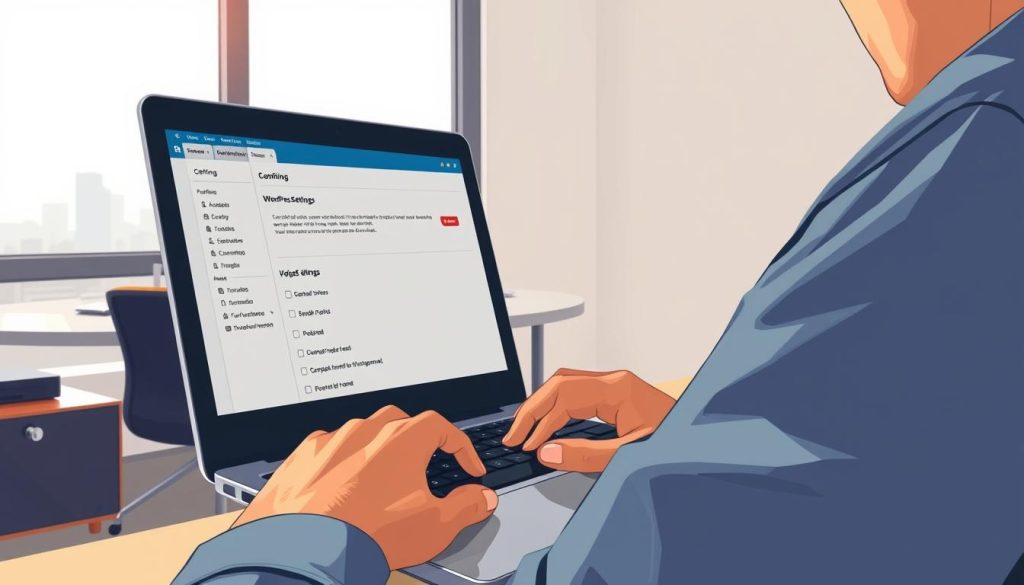
After installing WordPress, we start configuring settings for better performance and security. This setup includes key steps that affect our site’s visibility and how it works.
First, we go to the Settings section in the WordPress dashboard. Here, we tweak the General Settings. Changing the site title and description helps with SEO and tells visitors what our site is about.
Then, we need to set up permalinks for better search optimization. We should choose the ‘post name’ structure. This makes URLs easier to read and helps with search rankings.
User roles are also important for managing the site. We recommend setting new users to ‘Subscriber’ by default. This gives us control while letting users access important features.
To make our site even better, we can use plugins like Yoast SEO and W3 Total Cache. Yoast SEO is key for improving search visibility. W3 Total Cache makes our site faster, improving user experience.
| Configuration Task | Importance |
|---|---|
| Customize Site Title & Description | Enhances SEO and user understanding |
| Set Permalink Structure to ‘post name’ | Improves URL readability and SEO |
| Assign User Roles | Ensures secure access control |
| Install Yoast SEO Plugin | Increases site visibility in search engines |
| Utilize W3 Total Cache | Boosts site performance and user experience |
By doing these tasks early, we set up our WordPress site for success. Proper configuration after installation is key for managing our site well in the long run.
Designing Your Website with Themes
Choosing a WordPress theme is key to your website’s look and feel. Themes affect both how your site looks and how it works. With over 11,000 free themes in the WordPress directory, picking the right one can be tough.
Tools like Thrive Theme Builder and Thrive Architect make it easier. They offer hundreds of customizable templates. You can build a website in hours, making theme selection simpler.
When picking a theme, think about looks, plugin compatibility, and mobile friendliness. Thrive Themes are fast, clean, and easy to read. This is important because most visitors use mobile devices.
The setup process is quick. The Thrive Theme Builder Setup Wizard lets you design your site in minutes. You can add your logo and choose your main color, ensuring your brand looks good from the start.
Remember, the theme you choose can impact your site’s success. Keeping themes and plugins up to date is vital for security and compatibility. Spending time on theme selection can greatly improve your website’s performance and user experience.
Exploring Popular WordPress Themes
Choosing the right theme is key to your website’s look and function. With thousands of WordPress themes out there, picking one can be tough. WordPress.com offers hundreds, but your hosting plan limits your choices.
Themes come in two types: Classic and Block. Classic themes have set options, making customization hard without coding. Block themes, on the other hand, offer more freedom to change your site’s look without coding.
Block themes are now more popular because they’re easier to use. They let you change your site’s design more freely. The Site Editor in Block themes adds to this flexibility, giving you more design options.
Block themes let you use blocks everywhere on your site. Classic themes limit this to specific areas. This can cause problems if you switch themes later.
When looking for the best WordPress themes, check the Info page for each. These pages show unique features and options that improve your site. Block themes stand out with a special menu for editing, unlike Classic themes.
Enhancing Functionality with Plugins
Plugins are key for making websites better in WordPress. There are over 50,000 free plugins to choose from. This means site owners can add new features without spending a lot. About 50% of WordPress users use plugins to improve their sites.
Plugins come with different features, like SEO or online shopping tools. They make it easy to grow your website without big changes. You can find plugins for:
- SEO
- eCommerce
- Security
- User Engagement
Developers should follow WordPress coding rules to ensure their plugins work well. About 20% of users face problems with plugins not working right. This shows how important it is to test plugins well.
Adding a plugin is easy, even for those who aren’t tech-savvy. WordPress 5.0 made creating plugins even simpler. Now, developers can make sites look better and reach more people through the WordPress directory.
Many plugins offer free versions with paid upgrades. This lets users start small and grow as needed. Marketplaces like CodeCanyon also offer plugins, but they take a cut of sales. Using plugins can really help improve your website quickly.
WordPress Tutorial: Creating and Publishing Content
Creating WordPress content means knowing the difference between posts and pages. Posts are for timely updates and blog entries. Pages are for static content like “About Us” or “Contact.” We’ll show you how to use the Gutenberg editor to make your posts look great.
How to Create and Format Posts and Pages
Creating content in WordPress is easy and fun. Start in the admin dashboard and go to the post editor. The Gutenberg editor makes formatting posts simple. It treats each piece of content as a block, so you can control layout and style easily.
Here are key steps for formatting WordPress posts:
- Access the post editor from the dashboard.
- Select a block type to add content (e.g., Paragraph, Image, Block Quotes).
- Utilize Block Patterns for pre-designed layouts to streamline your workflow.
- Draft and preview your content before publishing to ensure clarity and engagement.
- Publish the post and manage visibility settings like public or private.
Utilizing the Gutenberg Editor for Enhanced Content Creation
The Gutenberg editor makes creating WordPress content easy. It has an intuitive interface for all users. You can start with the Paragraph block and add many content types, like text, images, and galleries.
Customizing blocks is a big plus of the Gutenberg editor. You can make each block fit your site’s design and needs. You can also control who sees your posts, which is great for a “Coming Soon” mode.
WordPress also has many plugins to help with creating and formatting posts. You can find plugins for SEO, multimedia, and more. There’s a tool for every need.
Optimizing Your WordPress Site for Performance
Improving WordPress site speed is key for a great user experience and better SEO. Performance affects how long users stay and convert. In fact, 40% of visitors leave if a site takes more than three seconds to load!
To keep your site fast, use a mix of caching, image optimization, and plugin management. Each plugin adds code, slowing your site. Turning off unused plugins can make a big difference.
Using a content delivery network (CDN) can make your site load faster, based on where visitors are. Serving content from the nearest server cuts down on delays. Also, optimizing images can reduce their size by up to 70%, making your site load quicker. Aim for image sizes between 204×151 and 1920×1080 pixels.
| Optimization Technique | Description | Impact on Performance |
|---|---|---|
| Caching | Stores copies of pages to reduce load times on subsequent visits. | Fastens site speed substantially. |
| Image Compression | Reduces image size without noticeable loss of quality. | Significant reduction in loading times. |
| Minifying Resources | Reduces file sizes of JavaScript and CSS files. | Enhances site speed significantly; |
| Active Plugin Management | Identifying and deactivating unnecessary plugins. | Decreases resource usage and improves loading times. |
| Regular Updates | Keeping WordPress and its components updated. | Incorporates performance optimizations and security enhancements. |
Use tools like Google PageSpeed Insights to check your site’s performance. Regular checks help keep your site running smoothly as it grows. A fast-loading site keeps users happy and boosts your search rankings.
Conclusion
Reaching WordPress mastery is not just an endpoint, but a valuable skill set we carry into various digital endeavors. This tutorial has laid down a solid foundation, catering to both beginners and experienced users. It encourages ongoing learning with WordPress.
We empower you to explore the vast ecosystem, which currently supports over 40% of all websites. With countless plugins and themes at your disposal, the possibilities are endless.
As we progress in our WordPress journey, it’s essential to utilize the resources available within the community. Plugins not only enhance site functionality but can also boost your traffic significantly when optimized correctly. Regular updates and well-structured sitemaps can attract more visitors and keep them coming back.
Remember, evolving our skills leads to enduring success. In this fast-paced digital world, the ability to create responsive, engaging websites is key. We must continue learning from one another, experimenting with new ideas, and embracing the capabilities of WordPress.
Remember, the journey of mastering this platform is as enriching as the destination itself. Together, let’s explore the possibilities ahead!