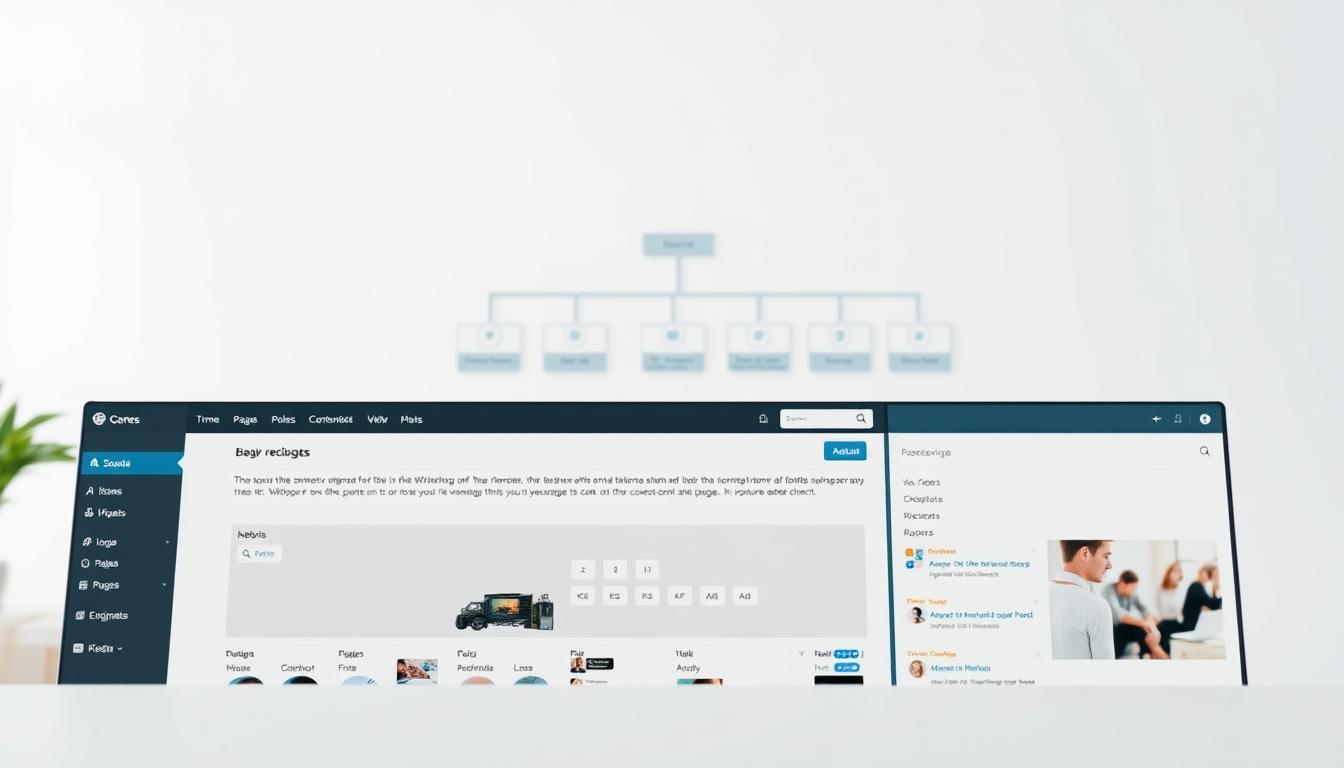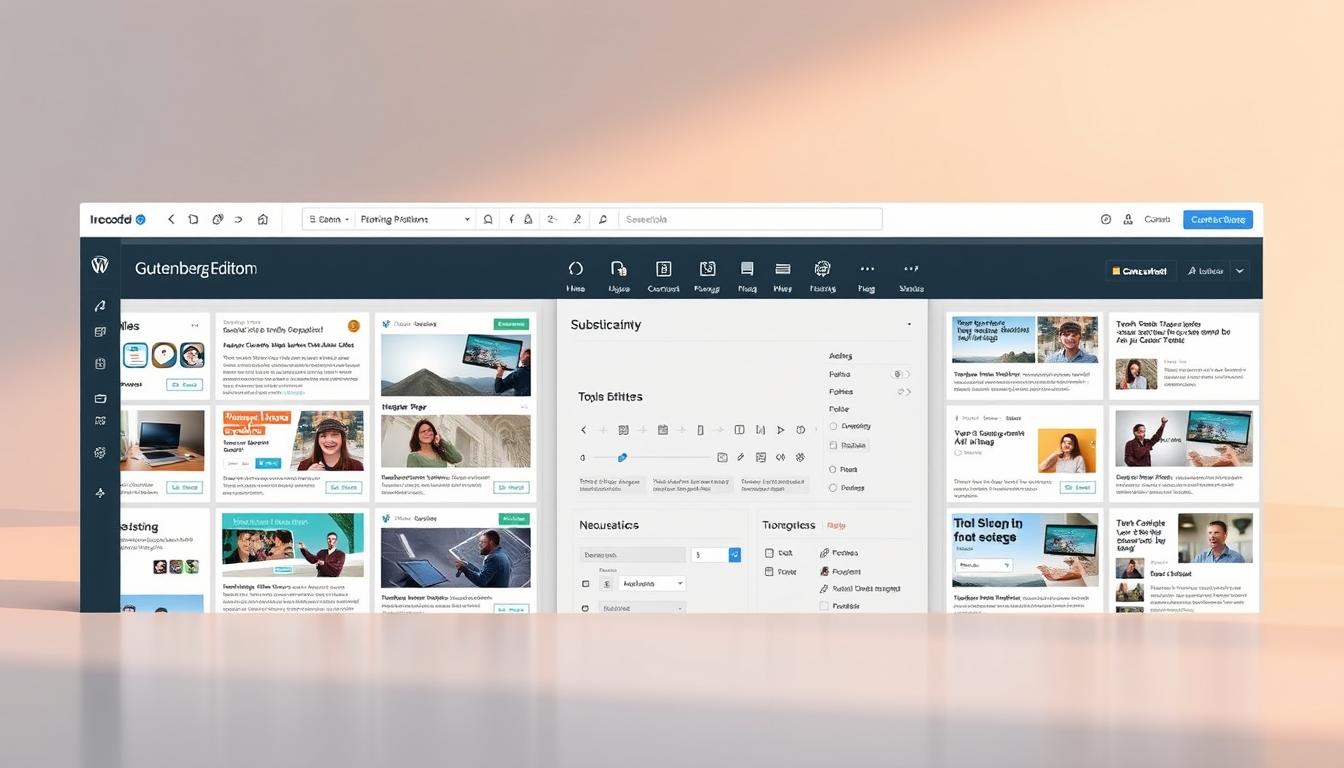
In 2019, the digital landscape saw a significant shift with the introduction of the block editor, replacing the traditional classic editor. This change brought a new era of flexibility and creativity for content creators. The gutenberg block editor allows users to build visually engaging pages and posts using customizable blocks.
Unlike its predecessor, the classic editor, this system simplifies tasks like adding images, embedding links, and creating custom layouts. It’s designed to make content creation more intuitive and user-friendly. Whether you’re a beginner or an experienced user, mastering these tools can transform your website’s look and feel.
Experts like WPBeginner have highlighted how this editor streamlines workflows and enhances site engagement. By understanding its features, you can unlock its full potential and create dynamic, interactive content effortlessly.
Key Takeaways
- The block editor replaced the classic editor in 2019, offering greater flexibility.
- Customizable blocks make it easy to create visually appealing content.
- Tasks like adding images and links are simplified for better user experience.
- Mastering the editor can significantly improve your website’s engagement.
- Experts recommend leveraging its features to streamline content creation.
Introduction to the Gutenberg Experience
Modernizing the way we build websites, the block-based approach has redefined user experience. Unlike the classic editor, this system offers a visually intuitive interface that simplifies content creation. Let’s explore how this transformation benefits users at every level.
Classic Editor vs. Gutenberg: A Comparative Overview
The classic editor was straightforward but limited in functionality. It required manual coding for advanced layouts, making it less user-friendly for beginners. In contrast, the block editor introduces a modular system where each element is a customizable block.
Here’s a quick comparison:
| Feature | Classic Editor | Block Editor |
|---|---|---|
| Layout Flexibility | Limited | Highly Flexible |
| User Interface | Text-Based | Visual and Intuitive |
| Customization | Manual Coding Required | Drag-and-Drop Functionality |
As WPBeginner notes,
“The block editor empowers users to create dynamic layouts without needing technical expertise.”
A Quick Tour: Editor Sidebar, Tools, and Options
The modern sidebar in the block editor is packed with innovative tools. From formatting options to plugin integrations, everything is designed for efficiency. Users can easily switch between the visual editor and code view, making it versatile for all skill levels.
- Drag-and-drop functionality for seamless content arrangement.
- Keyboard shortcuts to speed up workflows.
- Real-time previews to ensure accuracy before publishing.
In real-world use cases, businesses have reported improved workflows and enhanced site designs after switching. For example, a small business owner shared how the intuitive layout helped them create professional pages without hiring a developer.
We’re confident that this transition will empower you to create better content with ease. Whether you’re a beginner or an experienced user, the block-based system offers tools to elevate your website’s design and functionality.
Essential Features of the WordPress Gutenberg Editor
Core blocks form the backbone of this system, enabling seamless customization and creativity. These building blocks allow users to craft dynamic layouts without needing technical expertise. Whether you’re adding images, text, or galleries, the process is intuitive and efficient.
Exploring Core Blocks and Customization Options
The system offers a variety of core blocks, including image, text, gallery, and table blocks. Each block is highly customizable, allowing you to adjust layout, alignment, and styling to match your vision. For example, you can easily resize images, change text fonts, or rearrange gallery layouts with just a few clicks.
Here’s a quick overview of key customization options:
| Block Type | Customization Features |
|---|---|
| Image | Resize, crop, add captions |
| Text | Change fonts, colors, alignment |
| Gallery | Rearrange images, adjust spacing |
| Table | Add rows, columns, adjust borders |
Keyboard Shortcuts and Content Structuring Basics
Keyboard shortcuts are a game-changer for speeding up workflows. For instance, typing “/” allows you to quickly add a new block, while shortcuts like Ctrl+B (Cmd+B on Mac) let you bold text instantly. These tools make content structuring faster and more efficient.
Here are some essential shortcuts to try:
- / – Add a new block
- Ctrl+B – Bold text
- Ctrl+I – Italicize text
- Ctrl+Z – Undo last action
By mastering these features, you can refine the visual format of your posts and pages, ensuring they look professional and engaging. These tools not only enhance content quality but also improve user experience.
Creating and Managing Your First Post in Gutenberg
Creating your first post in a block-based system is simpler than you might think. The intuitive interface allows you to focus on crafting engaging content without unnecessary complications. Let’s walk through the essential steps to get started.
Setting Up Your Title, Block Toolbar, and Settings
Begin by navigating to the Posts » Add New menu. Here, you’ll find a clean workspace where you can set up your title and start adding blocks. The block toolbar is your go-to tool for customizing each element. From alignment to styling, everything is just a click away.
Here’s a quick breakdown of the block toolbar settings:
| Tool | Function |
|---|---|
| Alignment | Adjust block positioning (left, center, right) |
| Styling | Change fonts, colors, and background |
| Advanced | Add custom CSS or HTML |
As WPBeginner notes,
“The block toolbar simplifies customization, making it easy to create professional-looking posts.”
Converting Classic Posts to Gutenberg with Ease
If you’re transitioning from the classic format, the process is seamless. Simply open an existing post, and the system will automatically convert it into blocks. This ensures that your older content retains its structure while gaining the flexibility of the new system.
Here’s how to enhance your posts further:
- Add images and links directly from the media library.
- Integrate plugins to extend functionality, such as adding forms or social media feeds.
- Use built-in page builder features to create complex layouts without additional tools.
We’re confident these methods will help you create polished, engaging posts with minimal effort. Whether you’re a beginner or an experienced user, the block-based system ensures a smooth and efficient workflow.
Organizing Content with Blocks and Layouts
Organizing your content with blocks and layouts can transform your website’s design. By leveraging group and column blocks, you can create structured, visually appealing pages that enhance readability and user experience. These tools simplify the process of arranging content, making it accessible even for beginners.

Leveraging Group Blocks for Structured Content
Group blocks are a powerful way to bundle related content sections. They allow you to move, rearrange, and style multiple blocks as a cohesive unit. For example, you can group a series of text and image blocks to create a unified section for a product description or team profile.
Here’s how to use group blocks effectively:
- Select the blocks you want to group and click the Group option.
- Customize the group’s background, spacing, and alignment for a polished look.
- Use nested groups for more complex layouts, such as multi-step guides or FAQs.
As WPBeginner notes,
“Group blocks streamline the design process, enabling users to create professional layouts with ease.”
Utilizing Columns Blocks: From Basics to Advanced Techniques
Columns blocks are essential for creating multi-column layouts. They are perfect for showcasing comparisons, pricing tables, or side-by-side content. The basics involve adding a columns block and adjusting the number of columns to fit your needs.
For advanced techniques, consider these strategies:
- Use nested columns to create intricate designs, such as grids or layered content.
- Adjust column widths and spacing to ensure a balanced layout.
- Combine columns with other blocks, like images or buttons, for interactive designs.
Real-world examples show how these layouts enhance readability and design. For instance, a blog post using columns to compare features saw a 20% increase in user engagement.
By mastering group and column blocks, you can elevate your website’s aesthetics and functionality. These built-in features simplify the design process, making it practical for users of all skill levels. We’re confident these techniques will help you create professional, engaging layouts effortlessly.
Enhancing Content with Reusable Blocks and Templates
Streamlining content creation has never been easier with reusable blocks and templates. These powerful tools allow you to save time while maintaining a consistent design across multiple posts. Whether you’re creating a clickable table of contents or managing reusable templates, these features simplify your workflow and enhance your site’s professionalism.
Creating Clickable Tables of Contents and Reusable Templates
Clickable tables of contents improve navigation and user experience. To create one, start by adding a heading block for each section of your post. Then, use the table of contents block to automatically generate a list of links. This feature ensures readers can quickly jump to the sections they need.
Reusable templates are another game-changer. Save a pre-designed layout as a template, and reuse it across multiple posts. This approach ensures consistency and saves time. For example, if you frequently publish product reviews, create a template with sections for pros, cons, and ratings.
Managing Reusable Blocks for Consistent Design
Reusable blocks are perfect for elements you use repeatedly, like call-to-action buttons or author bios. To create one, design the block, then save it as reusable. You can manage all your reusable blocks from a dedicated page, making it easy to insert them into any post.
Here’s a quick guide to managing reusable blocks:
| Step | Action |
|---|---|
| 1 | Design the block with your desired content and styling. |
| 2 | Click the three-dot menu and select “Add to Reusable Blocks.” |
| 3 | Name the block for easy identification. |
| 4 | Access and insert the block from the reusable blocks library. |
Developers can take this a step further by creating custom blocks tailored to specific needs. Plugins like Spectra and PublishPress offer additional formatting options and block types, expanding the system’s functionality.
By leveraging these tools, you can maintain a consistent visual style across your site. As WPBeginner notes,
“Reusable blocks and templates are a must-have for efficient content creation.”
We’re confident these strategies will help you streamline your workflow and elevate your content’s quality.
Advanced Customizations: CSS and Plugin Integrations
Unlock the full potential of your site with advanced CSS and plugin integrations. These techniques allow you to customize your website’s appearance and functionality, creating a unique and engaging user experience. Whether you’re tweaking backgrounds, adding hover effects, or integrating custom plugins, these tools offer endless possibilities.

Custom CSS Techniques Using WP Customizer and Additional CSS
Advanced CSS customization is a game-changer for tailoring your site’s design. The WP Customizer and additional CSS boxes provide a straightforward way to implement changes. For example, you can adjust background colors, add hover effects, or create image pulse animations to make your content more dynamic.
Here’s how to get started:
- Navigate to the Appearance » Customize section in your dashboard.
- Use the Additional CSS box to add custom code for hover effects or background changes.
- Preview changes in real-time to ensure they align with your vision.
As WPBeginner notes,
“Custom CSS empowers users to fine-tune their site’s design without needing extensive coding knowledge.”
Integrating Custom Plugins and the Isolated Editor
Custom plugins extend your site’s functionality, adding new blocks and features. The isolated editor is particularly useful for testing these integrations outside your live environment. This approach ensures smooth performance and compatibility before deploying changes.
Here’s a step-by-step guide:
- Install and activate your desired plugin from the Plugins » Add New menu.
- Use the isolated editor to test new blocks and features in a controlled setting.
- Ensure compatibility with your theme and other plugins before going live.
For troubleshooting, check for plugin conflicts or theme-specific issues. Regularly update your plugins and themes to maintain optimal performance.
Common questions often arise about compatibility and performance. Rest assured, these advanced techniques are accessible with our step-by-step guidance. By leveraging CSS and plugin integrations, you can revolutionize your website’s appearance and functionality effortlessly.
Evolving Workflow: From Classic to Block-Based Editing
The shift from classic to block-based editing has revolutionized how we manage and create content online. This evolution brings a more intuitive and efficient approach to building post pages and managing websites. Let’s explore how this transformation enhances your workflow and simplifies content creation.
Transitioning Smoothly: Adapting to New Workflow Practices
Adapting to a block-based system may seem daunting, but the process is straightforward with the right strategies. Start by familiarizing yourself with the drag drop interface, which allows you to arrange content effortlessly. This feature alone accelerates development and reduces the time spent on manual adjustments.
Here are some tips to ease the transition:
- Explore the default settings and customize them to fit your needs.
- Take advantage of the option to convert classic posts into blocks for seamless migration.
- Use the real-time preview feature to ensure your changes align with your vision.
As WPBeginner notes,
“The block-based system simplifies content management, making it accessible for users of all skill levels.”
This new workflow not only boosts productivity but also enhances the overall performance of your website. By leveraging the use block editor features, you can create dynamic layouts and improve user engagement.
Case studies from WP Engine highlight how businesses have streamlined their processes and achieved better results. For example, a small business reported a 30% increase in site traffic after adopting the block-based system.
We’re confident that with our expert guidance, the transition will be smooth and highly beneficial. Embrace the new workflow to elevate your content creation and management practices.
Conclusion
Embracing the block-based approach has transformed how users create and manage content online. This guide has highlighted the significant benefits of transitioning from the classic system, emphasizing flexibility, efficiency, and creativity. From core block features to advanced customizations, these tools empower you to build modern, engaging websites effortlessly.
We encourage you to experiment with features like text formatting, table insertion, and layout building. These functionalities simplify complex tasks, making content creation more intuitive. By leveraging reusable templates and custom code, you can maintain consistency and elevate your site’s design.
Our expert insights ensure you’ll master these tools quickly, boosting productivity and enhancing your workflow. Adopting this system marks a major advancement in content creation, offering endless possibilities for innovation. Start exploring today and unlock the full potential of your website!